
Student experience
The student wears the Panda wearable at school. No app, no manual check-in, and no extra steps.
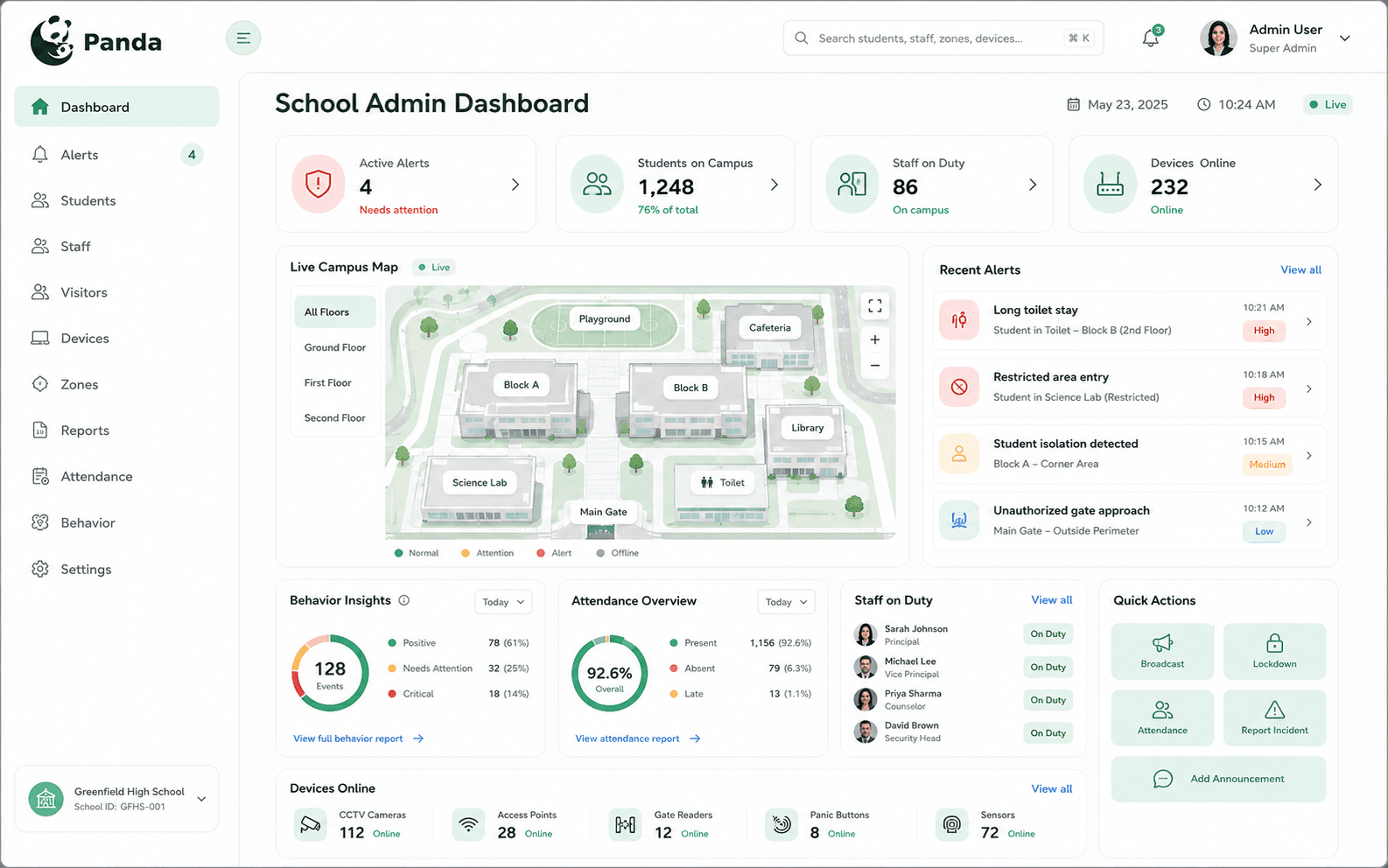
Panda combines a student wearable, approved school zones, clear alerts, and role-based communication so schools can support safety without adding extra steps for children.
The student wears the Panda wearable at school. No app, no manual check-in, and no extra steps.
Panda devices are placed in approved school areas for zone awareness only, with no cameras or microphones.
The school is notified when attention is needed, such as a long stay, restricted area, gate event, or SOS.
Each role sees only the information they need, focused on faster care rather than tracking every detail.
Panda supports zone-level safety inside the school. It does not use cameras, record audio or video, or label and judge children.
School teams define the areas that matter for safety workflows, then use zone-level context when attention is needed.
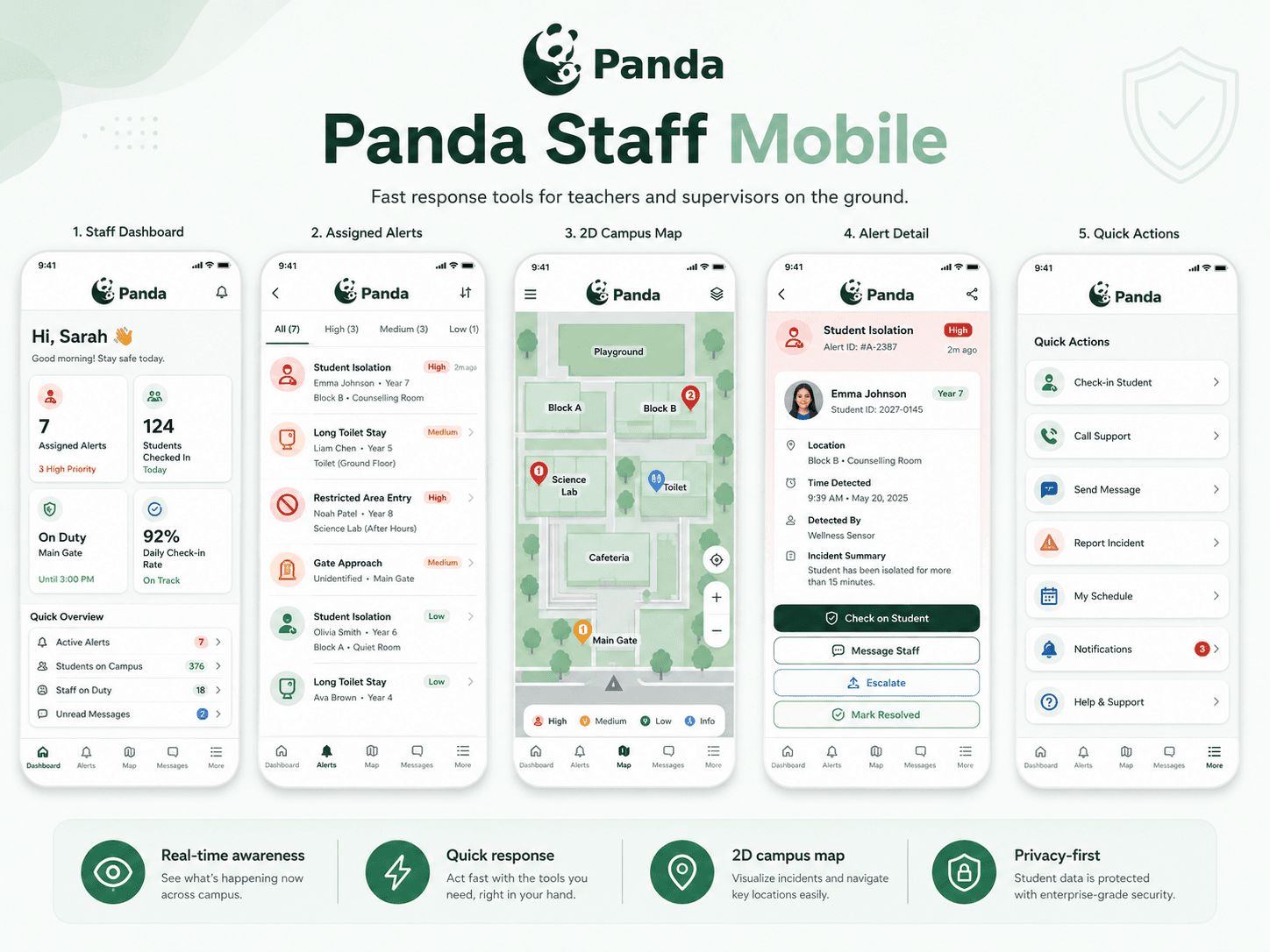
Staff mobile screens keep assigned alerts, location context, student details, and quick actions close to responders.
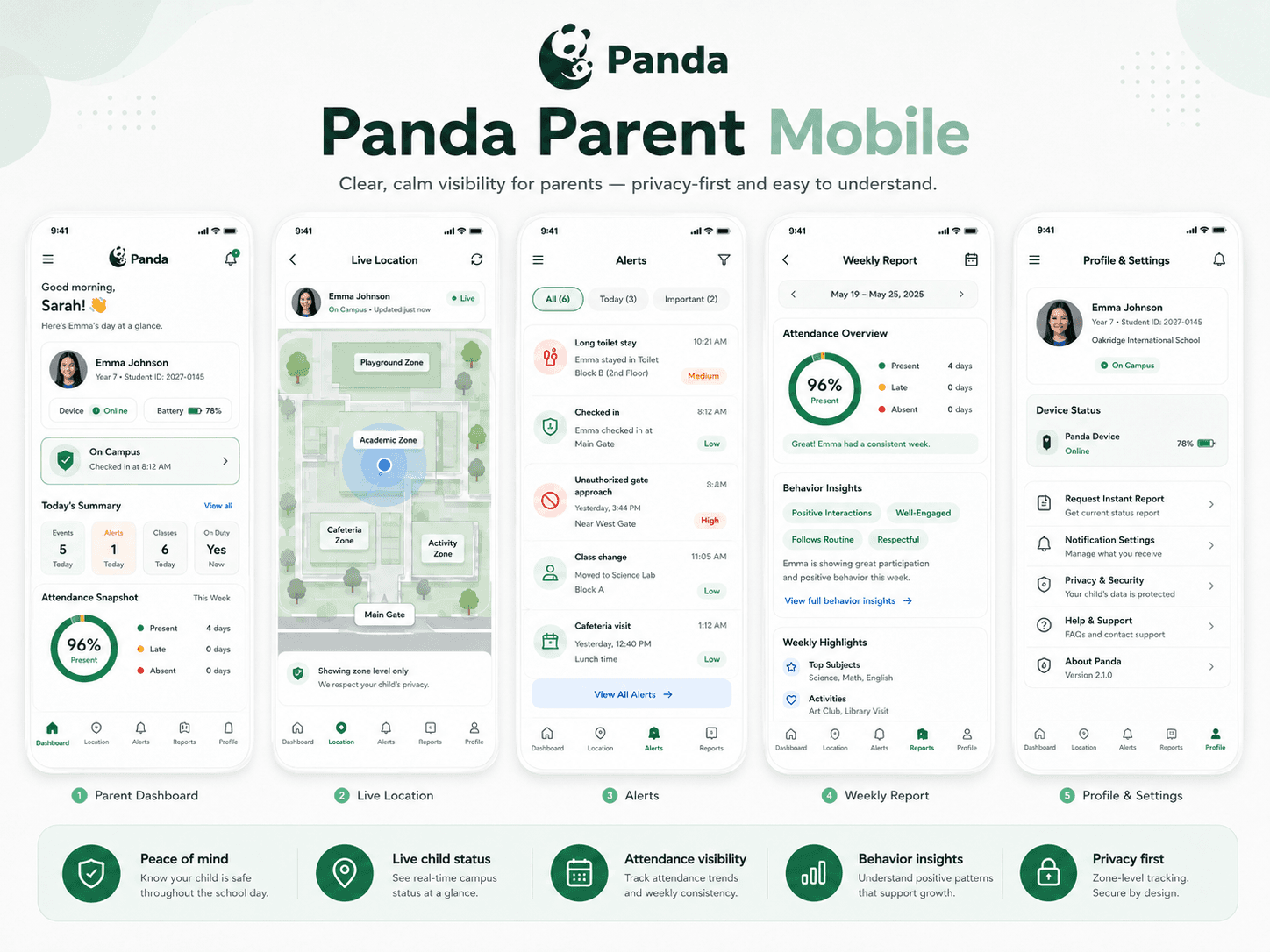
Parents see simple child status, device connection, and school-approved summaries without internal response details.
These are customer-facing examples of alerts Panda can organize by severity and category, without exposing internal phase codes.
Alerts that help schools notice location, welfare, attendance, and device issues during the school day.
A student's wearable has been detected inside an area that is not approved for the current time or student profile — such as a restricted corridor, plant room, or staff-only zone.
A wearable signal is received by a Zone Anchor placed inside a zone marked as off-limits for students.
A staff member is notified immediately and directed to the zone. The student is escorted out and the incident is logged automatically.
Admin, assigned duty staff
A student has remained alone in an approved zone — such as a corridor or quiet area — for longer than the school's configured welfare threshold.
One wearable is detected in a zone without others nearby and without movement for an extended period.
A welfare-check notification is sent to nearby staff, who investigate and confirm the student's status without disrupting the wider school.
Welfare officer, duty staff
A student is detected in a zone that does not match their current timetable — for example, in a classroom they are not scheduled for at that hour.
A wearable is active in a zone not associated with the student's class schedule at the current time period.
Admin reviews attendance records and staff are notified to verify the student's whereabouts and correct the record if needed.
Admin, attendance officer
A student's wearable has not been detected by any Zone Anchor since the start of the school day, suggesting the device may not be on the student.
No signal received from a registered wearable within the expected school-start detection window.
Attendance staff are alerted to confirm whether the student is present and wearing the device, and to assist with reissuing if needed.
Attendance officer, homeroom teacher
A registered wearable has lost contact with the campus network and is no longer reporting zone presence, which creates a gap in safety coverage.
A wearable that was previously active stops transmitting for longer than the configured silence threshold.
IT or admin staff check the device and the student's last known zone. A replacement may be issued to maintain coverage.
IT admin, device coordinator
A student's wearable was first detected after the official school start time, indicating a late arrival that has not been pre-authorised.
The first Zone Anchor detection for a wearable occurs after the configured school-start sign-in cutoff time.
An attendance record is automatically flagged. Admin or front-office staff may follow up with the student's family if needed.
Attendance officer, admin
A student has been detected in the bathroom zone for an unusually long period that exceeds the school's configured welfare time limit.
A wearable remains active in a bathroom or welfare zone past the configured time limit without returning to a scheduled area.
A discreet welfare check is sent to nearby duty staff, who check on the student without disrupting other students nearby.
Duty staff, welfare officer
A student's zone transitions do not match typical patterns for that time of day — such as rapidly moving between many zones or visiting areas in an unexpected sequence.
The system detects a sequence of zone changes that falls outside the expected movement patterns for that student or time period.
Staff are notified to observe the student. No immediate action is required unless other signals are also present.
Admin, duty staff
A student has entered and exited the bathroom zone multiple times within a short window, which may indicate a physical or emotional welfare concern.
More than the configured number of entries to a bathroom zone are recorded for one wearable within a rolling time window.
A welfare log entry is created automatically. A pastoral care staff member may follow up discreetly at an appropriate time.
Welfare officer, pastoral staff
Alerts that help staff review attendance, device readiness, crowding, exit events, and daily records.
More students than expected are detected in a single zone simultaneously, which can indicate an unsupervised gathering or a developing disturbance.
Multiple wearables are detected in the same Zone Anchor area above the configured threshold for that zone type.
A nearby staff member is alerted to check the zone. If a disturbance is confirmed, standard incident procedures apply.
Duty staff, admin
A zone that should have students present — such as a classroom — shows no wearable activity during its scheduled class hours.
No wearables are detected in a zone that has a scheduled class or group during the current time period.
Admin or the relevant teacher is notified to confirm whether the class has relocated or whether roll-call was missed.
Admin, timetable officer
A registered student has not appeared in any campus zone since the school day started, suggesting a possible unnotified absence.
No Zone Anchor has logged a signal from a student's wearable after the school-start detection window closes.
Attendance staff follow the school's standard absent-student procedure, which may include contacting the family by phone or app.
Attendance officer, admin
A wearable is reporting a weak connection to its nearest Zone Anchor, which may indicate a coverage gap or an obstruction in that area.
Signal strength between a wearable and the nearest Zone Anchor drops below the configured acceptable threshold.
IT or the device coordinator reviews anchor placement in that area to identify and close any coverage gaps.
IT admin, device coordinator
Two or more wearables are detected as co-located in a zone that would not normally accommodate multiple students — such as a single-occupancy bathroom.
More than one active wearable signal is simultaneously registered to the same fine-grained Zone Anchor.
Staff are notified to investigate. This may indicate a shared device, a hardware anomaly, or a welfare concern requiring attention.
Duty staff, IT admin
A student's wearable has been detected near or beyond a campus exit point during school hours, indicating a possible unauthorized departure.
A wearable is detected by a Zone Anchor placed at or near a school gate or perimeter exit during restricted hours.
An immediate alert is sent to gate staff and admin. The student is located and safe-exit procedures are followed and logged.
Admin, gate staff, duty teacher
A student's wearable was last detected earlier than the school's official end time, indicating the student may have left campus before dismissal.
The last Zone Anchor detection for a wearable occurs before the configured school-end time on a standard school day.
Attendance staff check whether a parent or guardian provided prior authorisation for early departure and update the record.
Attendance officer, admin
A wearable's battery level has dropped below the minimum needed to reliably maintain zone presence detection through the rest of the day.
The wearable reports a battery level below the configured minimum, or its transmission frequency becomes irregular.
The device coordinator is notified to charge or swap the device at the next practical opportunity during the school day.
Device coordinator, IT admin
A student who was expected to be in a specific zone based on their schedule has not been detected there and is not appearing anywhere on campus.
A scheduled class or activity location has no matching wearable signal for a student who should be present at that time.
Admin and the relevant teacher are notified to verify the student's location through standard roll-call and attendance procedures.
Admin, homeroom teacher
Panda has compiled the day's attendance, alert, zone activity, and device-health data into a summary report for admin review.
The summary is generated automatically at the configured school-end time, or when manually triggered by an administrator.
No immediate action required. Admin reviews the summary and distributes relevant portions to teachers, leadership, or families.
Admin, school leadership
A Panda walkthrough can show how each step fits your school roles, escalation paths, and parent communication policy.